Case Management
Views
immiio provides two main visualizations:
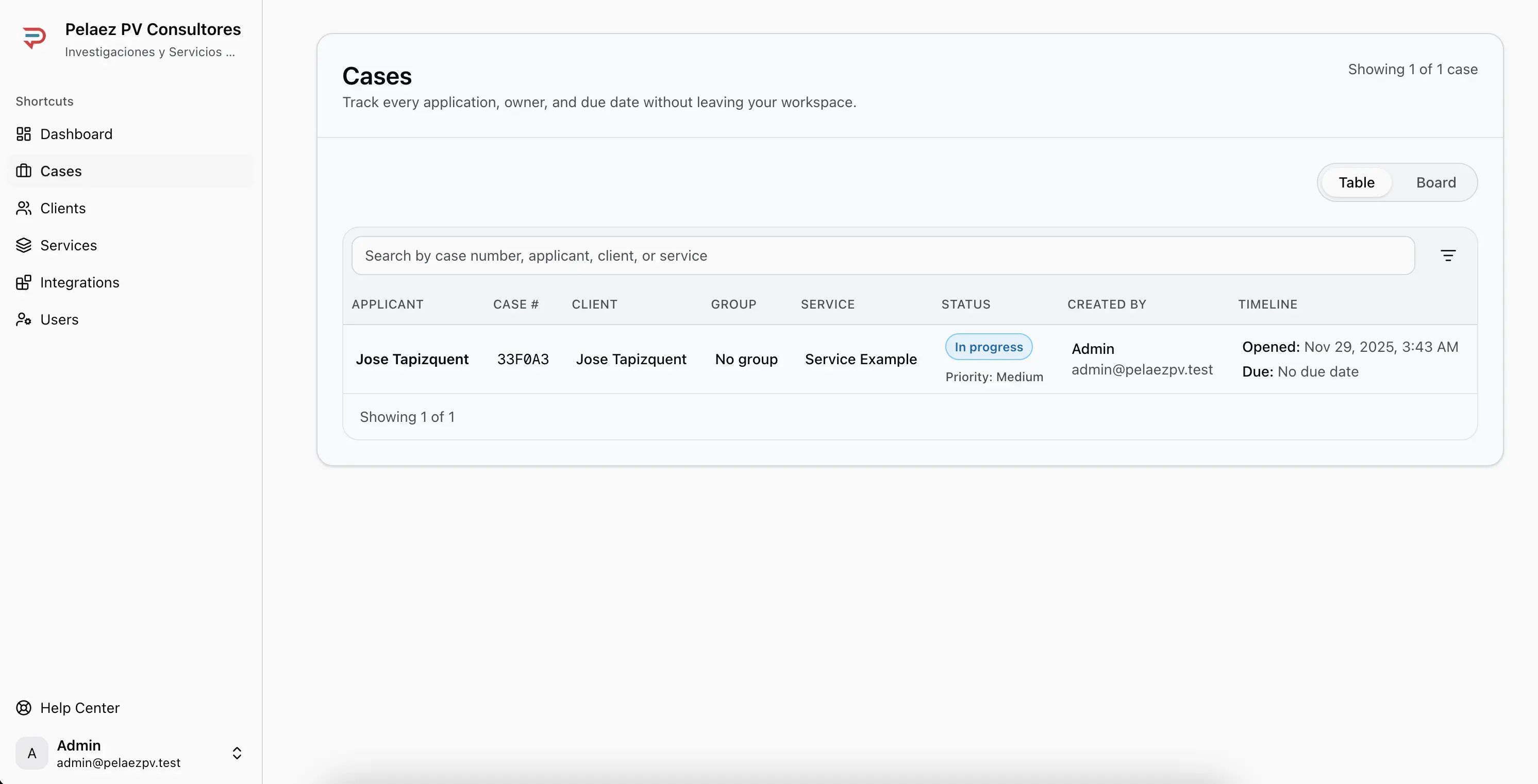
- List view, for detailed table-style review
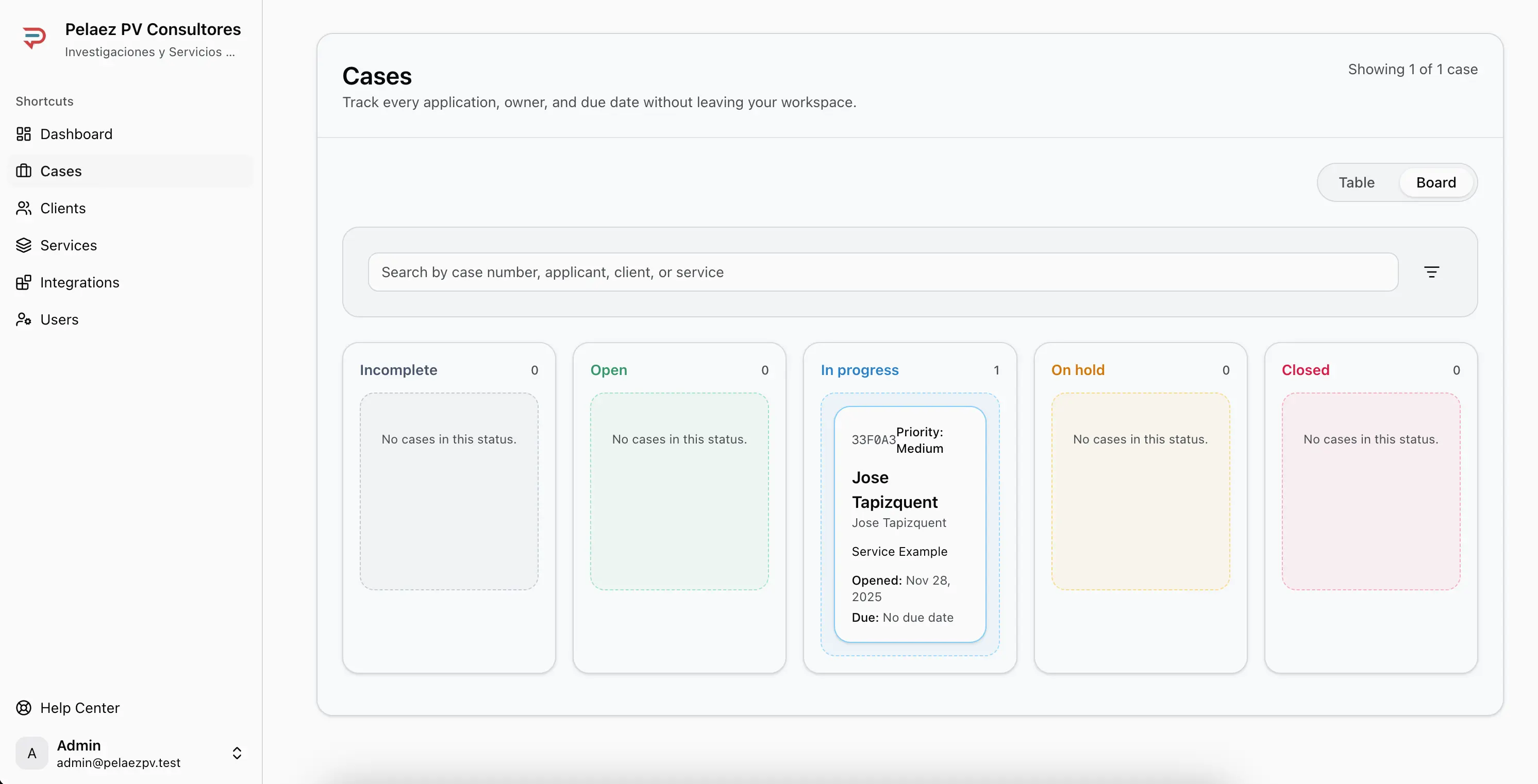
- Board (Kanban) view, for drag-and-drop movement across statuses
Case Status Flow
Statuses represent where a case is in your process.
You can drag cases across statuses to update their position.
Inside a Case
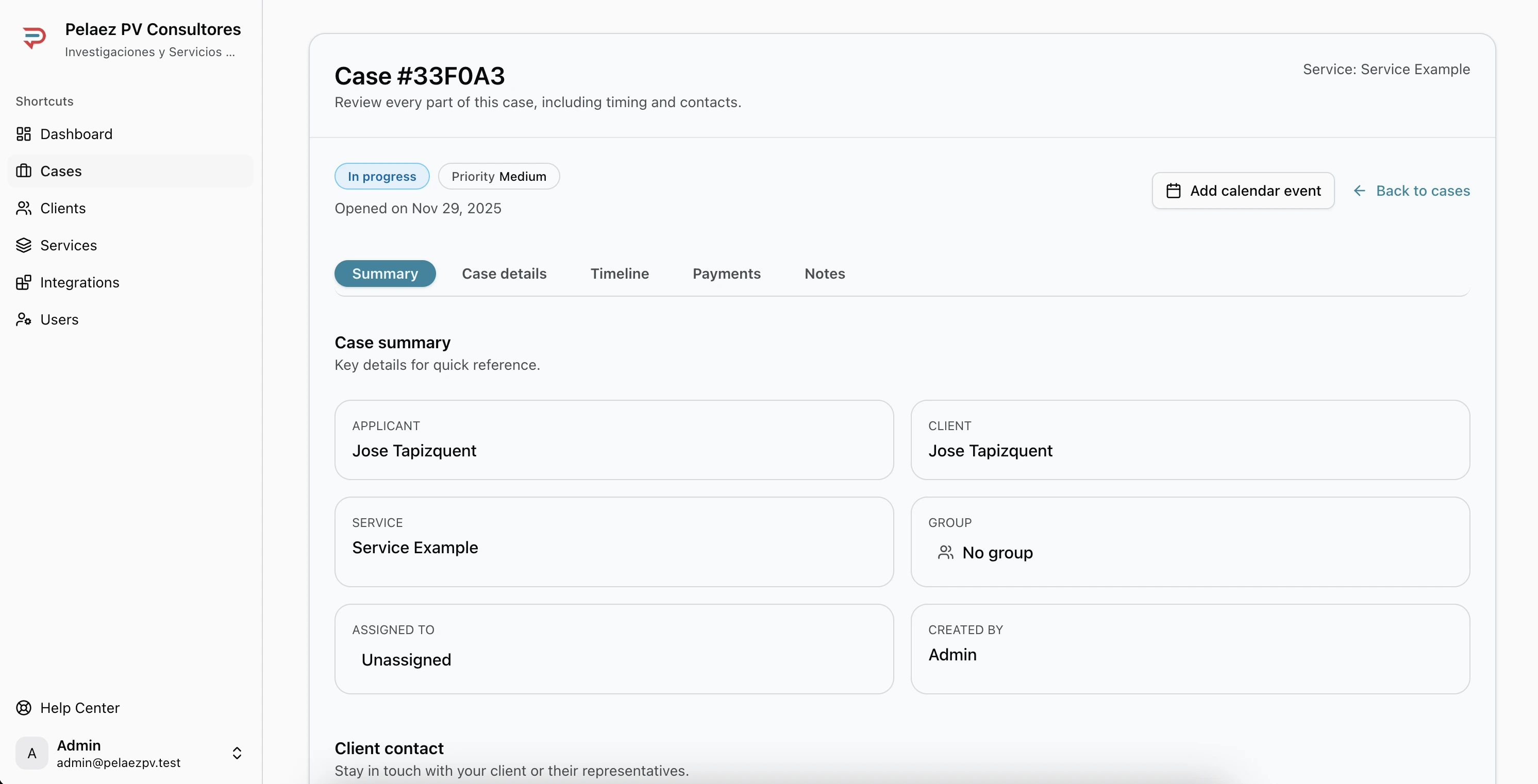
Each case includes the following tabs:
Summary
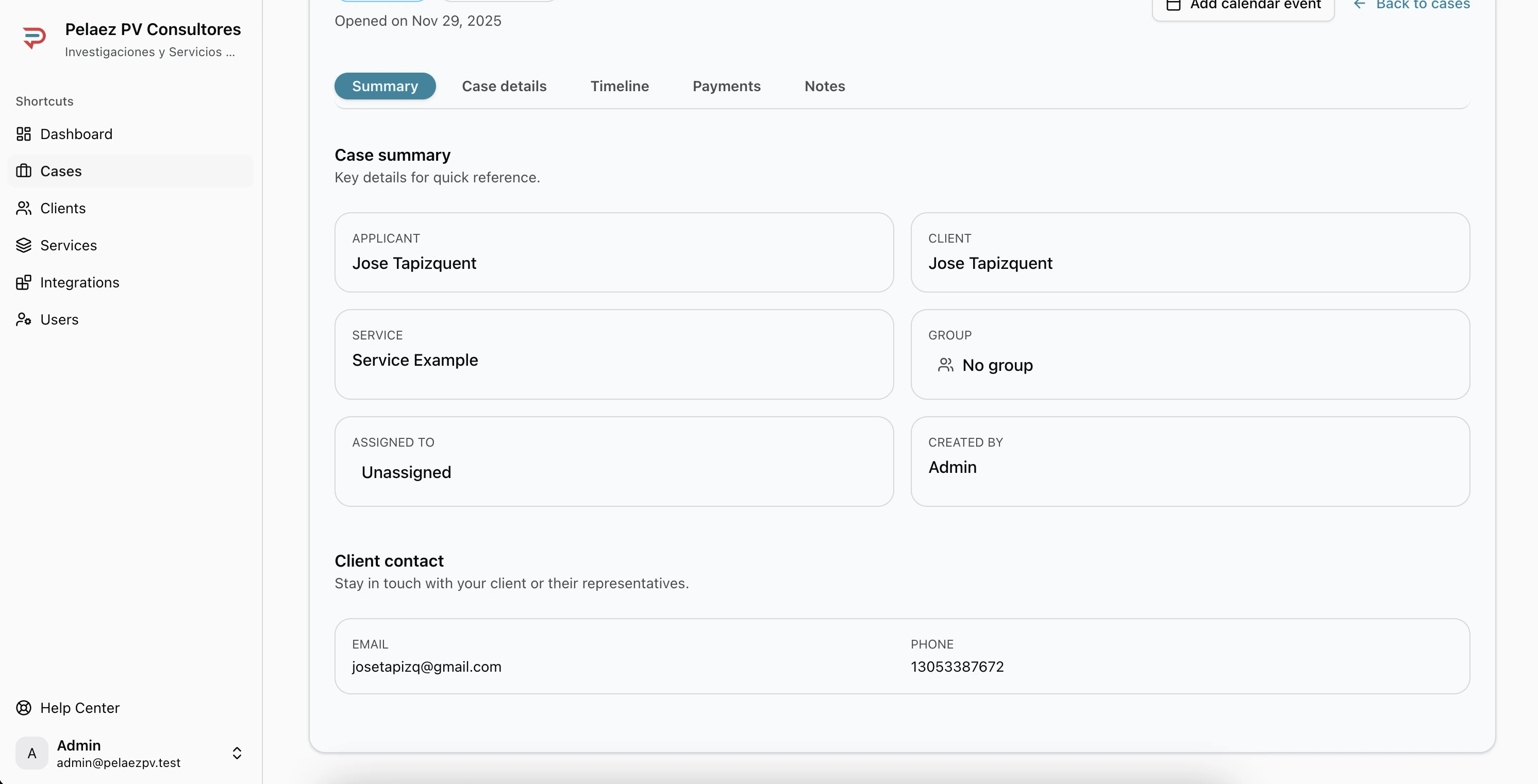
- Client name
- Service name
- Assigned staff
- Group (if applicable)
- Case creator
Details
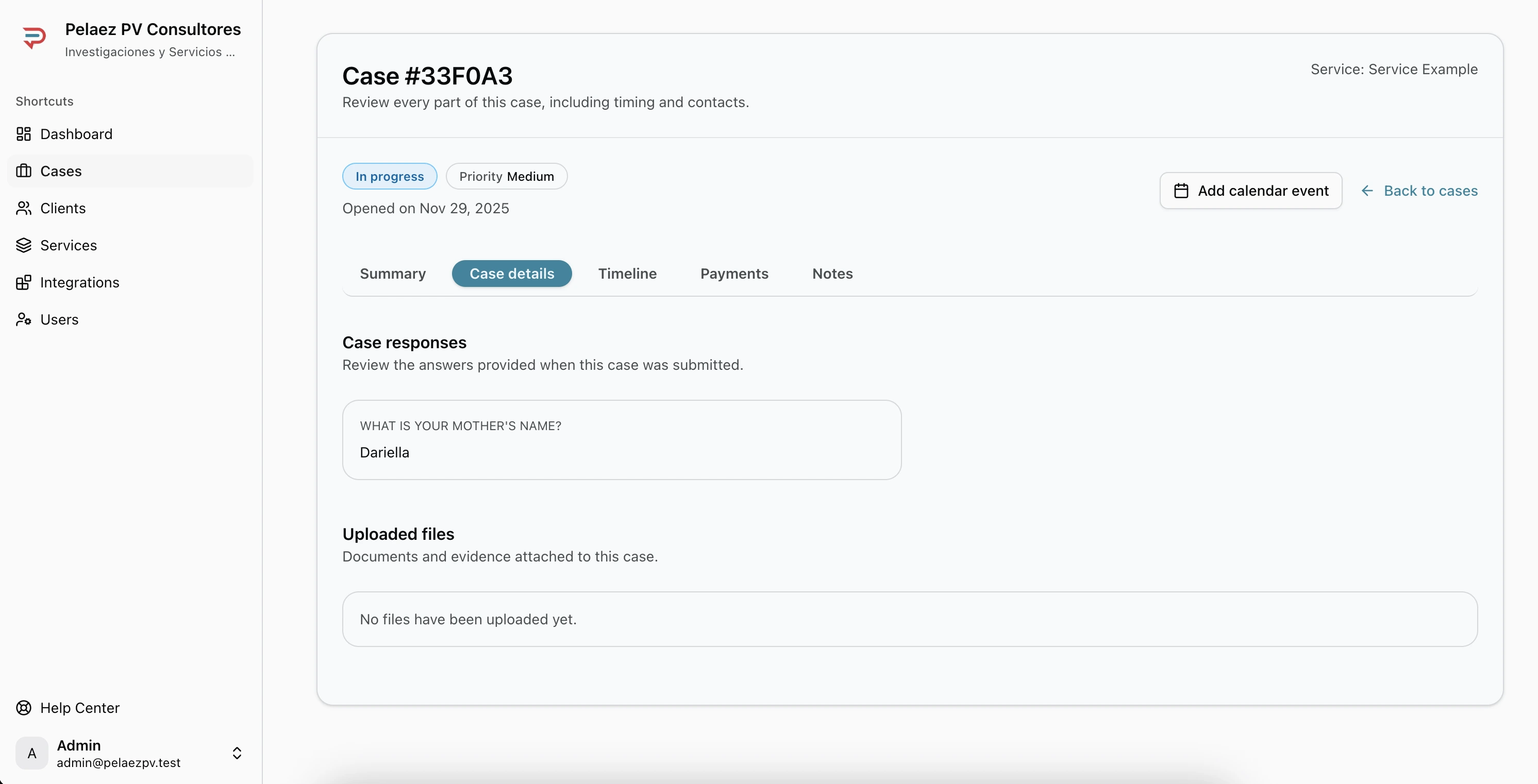
- All answers collected from the service form
- Any uploaded documents
Timeline
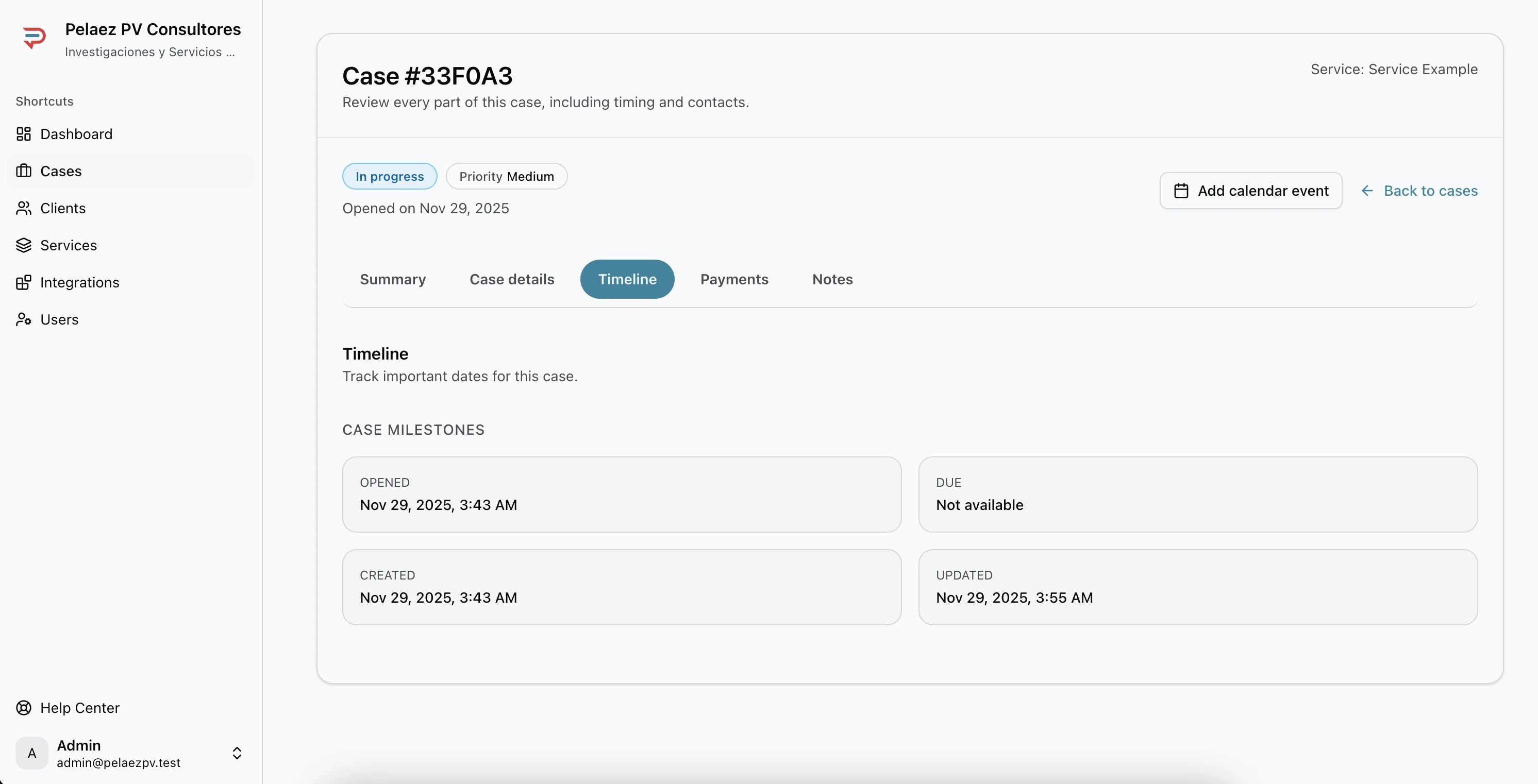
- Opened date
- Expiration date
- Created date
- Last updated
Payments
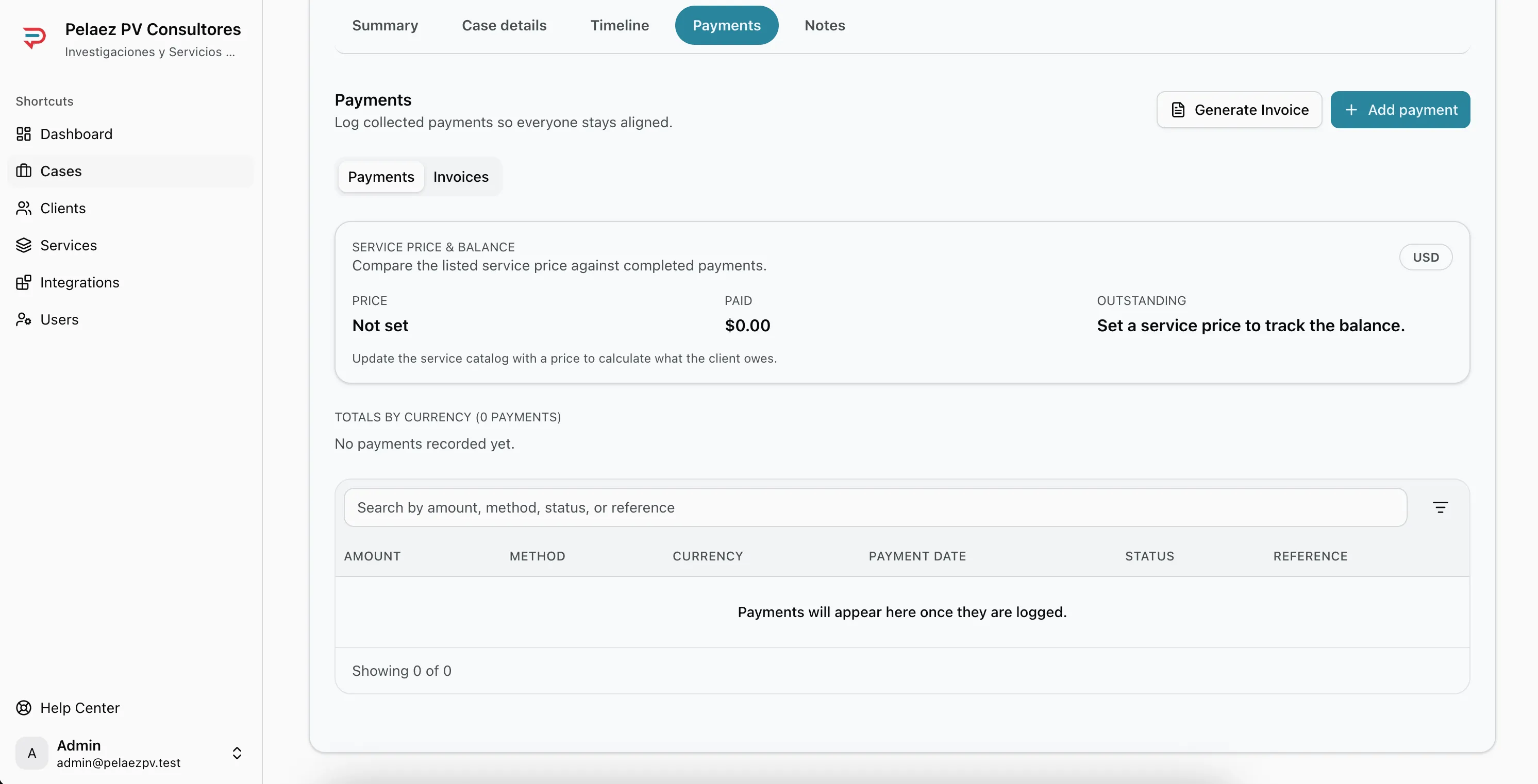
Here you can:
- View all payments
- Record new payments
- Add amount, method, and date
- Choose a currency (USD, DOP, CAD, EUR)
- Create invoices
- Download PDF invoices
Invoice Creation
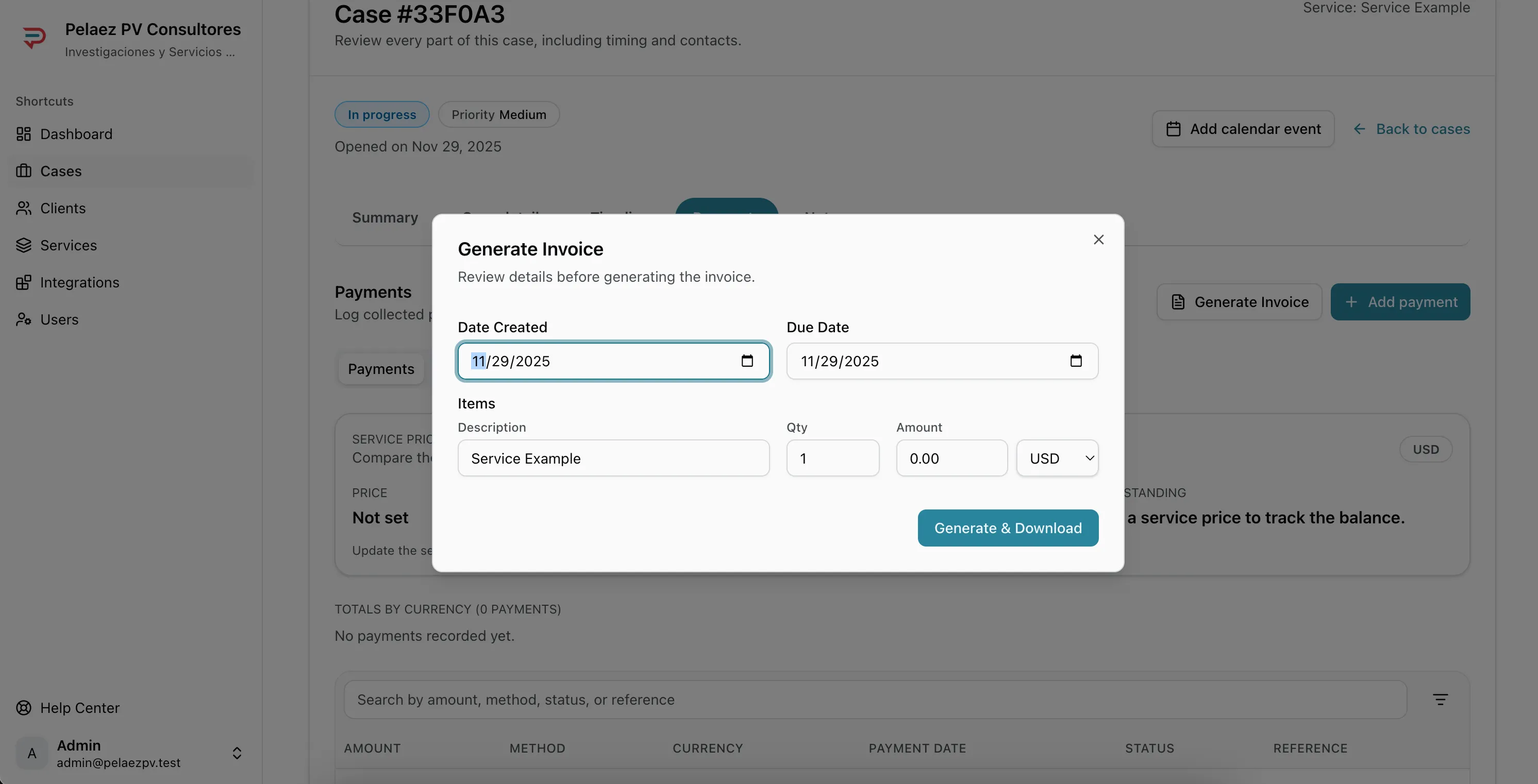
Use the invoice modal to enter amounts, due dates, and generate PDFs.
Notes
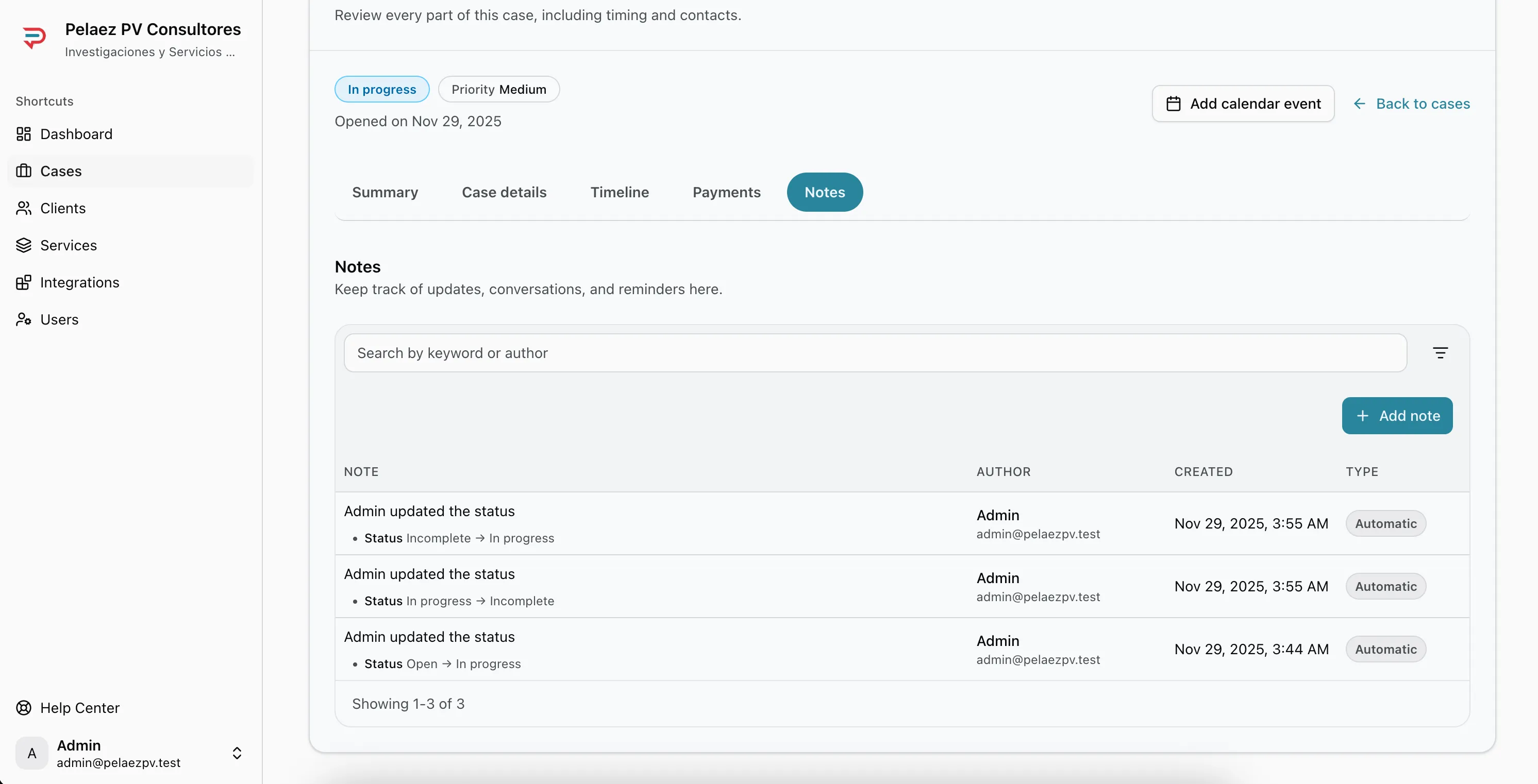
Two types of notes appear here:
- Manual notes, created by your team
- Automatic notes, added when:
- Status changes
- Payments are recorded
- Invoices are created
- Calendar events are added